MCP Connectors Installation
Every Semantius data platform exposes two remote MCP servers: fully hosted, streamable HTTP endpoints you connect to directly. There’s nothing to install locally. Pick the server that matches what you want the client to do, then point your MCP client at its URL. For background on what each server does, see the MCP Connectors Overview.
Find Your Platform URLs
When you create a data platform, the admin dashboard shows the URLs to use. Open your platform on app.semantius.com. The Data Platform URLs panel lists everything you need:
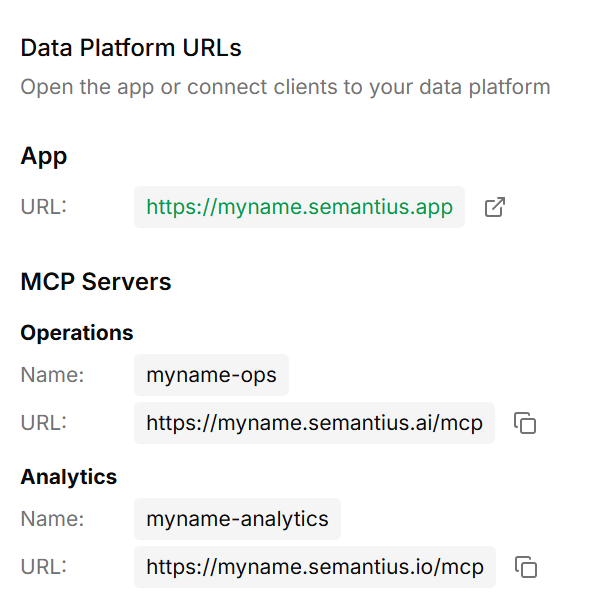
Each platform gets its own subdomain. myname is replaced with the unique name of your platform. Copy the URLs straight from the dashboard rather than constructing them by hand.
The Two MCP Servers
Ops MCP
The Ops server is for managing the platform and working with records.
- Schema management: create, rename, and delete entities, fields, and relationships.
- Permissions: define roles and configure RBAC.
- CRUD on every entity: create, read, update, delete records.
- Search across entities.
Use this server when you want an agent to evolve the model or to interact with individual records.
Analytics MCP
The Analytics server is for querying and visualizing data.
- Complex queries across multiple tables, with joins resolved through the semantic layer.
- Aggregations, filters, and time-series analysis grounded in the model’s measures and dimensions.
- MCP apps that render results as interactive charts and grids directly in the chat: not static images, but live components the user can sort, filter, and drill into.
Use this server when you want an agent to answer analytical questions or build dashboards.
You can register both servers in the same client. The agent will pick whichever fits the request.
Connect Your Client
ChatGPT
- In ChatGPT, open Settings → Connectors → Add custom connector.
- Paste the server URL:
https://myname.semantius.ai/mcpfor Ops orhttps://myname.semantius.io/mcpfor Analytics. - Authenticate when prompted. Semantius will open a sign-in flow and bind the connector to your user.
- Save. The connector appears in the tools picker on any new chat.
Repeat for the second server if you want both.
Claude (Desktop & Web)
- Open Settings → Connectors → Add custom connector.
- Paste the server URL.
- Complete the sign-in flow when prompted.
- Enable the connector for the workspaces that should see it.
Claude Code
Add each server you want to use:
claude mcp add myname-ops --transport http \
  --url https://myname.semantius.ai/mcp

claude mcp add myname-analytics --transport http \
  --url https://myname.semantius.io/mcp
Or edit ~/.claude.json directly:
{
  "mcpServers": {
    "myname-ops": {
      "transport": "http",
      "url": "https://myname.semantius.ai/mcp"
    },
    "myname-analytics": {
      "transport": "http",
      "url": "https://myname.semantius.io/mcp"
    }
  }
}
Restart Claude Code, then run /mcp to confirm the servers are connected and complete the sign-in.
Other MCP Clients
Any client that speaks the Model Context Protocol over HTTP works the same way: paste the server URL and follow the sign-in flow when the client first connects.
Verify the Connection
- Ops: ask the client “List the entities in my platform.” If you get the schema back, ops is wired up.
- Analytics: ask “Show total records per entity as a chart.” A successful answer renders an interactive chart in the chat.
If the client reports a permission error, the issue is the role the connector signed in as. Your platform’s RBAC is enforced on every call. Adjust the role in the admin dashboard, then reconnect.
Next Steps
- Agent Skills Installation →: For coding agents, install the Semantius CLI and skills alongside these MCP connectors.
- Models Overview →: Learn what the connectors are reading and writing.
- Templates →: Deploy a curated semantic model and start chatting with it through the MCP connectors.